
Talk · Selection · Wired GaN chargers: wattage, ports & protocols
What charger do we need for a USB-C monitor or dock?
Check the monitor's or dock's power input: some have their own mains supply, others take USB-C power and pass it to the laptop. Size the charger for the laptop's needs plus the dock or monitor's own consumption.
 Wecent Editorial Team
Updated
3 min read
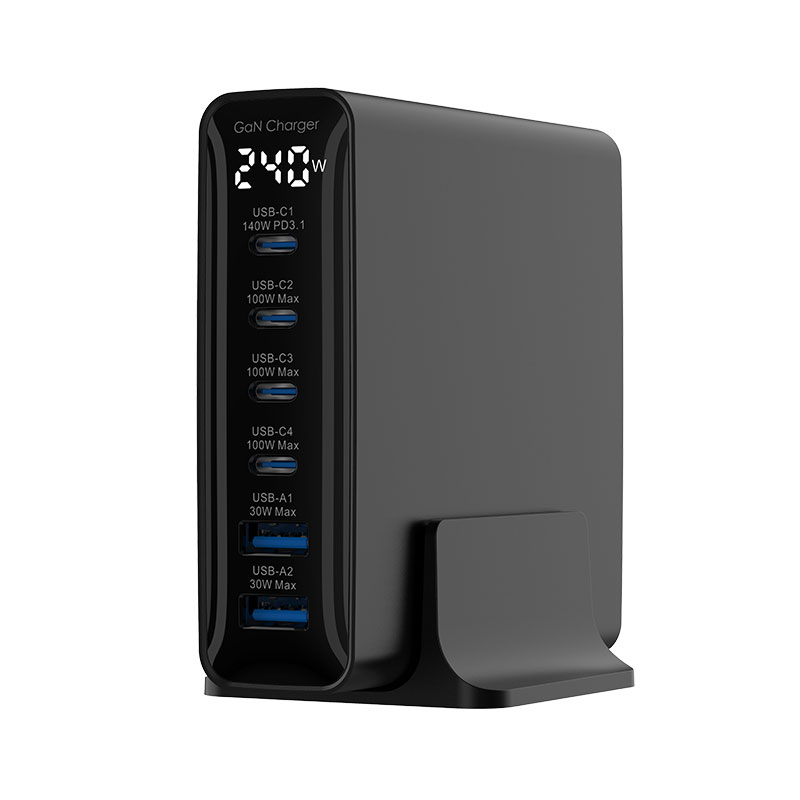
Customers ask which of our chargers to use with their USB-C dock or portable USB-C monitor. How should we advise them?
Short answer: It depends on the device. Many desktop monitors have their own mains power and supply power to the laptop over USB-C, so no charger is needed. Portable monitors often take power over USB-C, sometimes from the laptop, sometimes from a charger. Docks usually take power from a USB-C charger and pass most of it to the laptop. Size the charger for the laptop’s needs plus the dock or monitor’s own use, often 10–20W or more, and use a 5A cable above 60W.
Desktop USB-C monitors
Many monitors with USB-C input have their own mains power. They supply power to the laptop over the same USB-C cable that carries video, often 65W or 90W. No extra charger is needed, but check that the monitor’s output matches the laptop’s needs.
Portable USB-C monitors
Portable monitors often run from the laptop’s USB-C port. For brighter use or to avoid draining the laptop, they can take power from a separate charger through a second USB-C port. Check the monitor maker’s guidance on charger wattage.
Docks
Docks take power from a charger and pass it through. They keep some for themselves and connected devices. Add the laptop’s needs and the dock’s overhead. A 100W charger suits many laptop-plus-dock setups.
Cables
Use 5A cables between charger and dock above 60W. Use the dock or monitor’s recommended cables for video, since not all USB-C cables carry video.
Ports
Docks and monitors often have a dedicated power input port. Using the wrong port may mean no power pass-through.
Multi-device desks
A multi-port charger can power a dock and charge a phone separately. Check allocation so the dock still gets enough.
Firmware
Dock and monitor firmware updates sometimes improve power handling. Encourage users to keep them updated.
Charging speed expectations
Through a dock or monitor, laptops may charge a little slower than with a direct charger. That’s normal. If the laptop shows a “slow charger” warning, a higher-wattage charger or the monitor’s own higher power output solves it.
What to tell customers
“Check whether your monitor or dock has its own power supply. If it takes power from USB-C, use a charger that covers your laptop’s needs plus 15–20W, with a 5A cable.”
What to confirm
Confirm with Wecent the per-port outputs and test with popular dock models before recommending specific combinations.
Where this answer says confirm with Wecent, the detail is not published on the product page and has to come from the datasheet or the factory. General facts come from the standards bodies, regulators or device makers named in the text.
Three more perspectives
Products discussed in this thread
Related articles & topics
Have a sourcing question about your own programme?
Ask our team More Wired GaN chargers: wattage, ports & protocols questions